What you'll need
- Your phone or computer with some photos
- About 10 minutes
Use the free editor you already have
Device Free editor How to open it iPhone or iPad Photos app Open a photo, tap Edit Android (and any phone) Google Photos Open a photo, tap Edit Windows PC Photos app Open a photo, choose Edit Mac Photos app Open a photo, click Edit 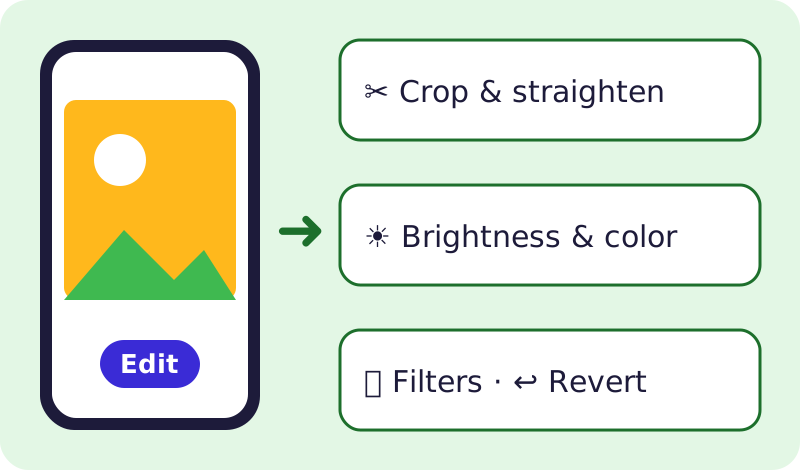
Every free editor works the same way. Make simple fixes
- Crop to cut out extra space and straighten a tilted photo.
- Adjust or Light to brighten a dark photo.
- Not happy? Choose Revert or Undo; your original is kept.
💡 Tip: Newer phones also have free "erase" tools to remove small things from the background. If you don't see it, your phone may not support it, and that's OK.
Make invitations and cards with Canva Free
- Go to canva.com or get the Canva app from your app store.
- Sign up for the Free plan. It includes lots of templates and 5 GB of storage.
- Pick a template (birthday, flyer, invitation), swap in your photo and words, then Share > Download as PDF or JPG to print or text.

Canva's Free plan costs $0. Paid plans are optional. Screenshot of the official page, October 2026. It may look a little different now. Know what costs money
Items with a crown or "Pro" label in Canva need a paid plan. Skip them, or pick a free one. Some AI features are limited on free plans. Google Photos and iCloud storage are free up to a limit.
Skip subscription-trap editors
⚠️ Watch out: Many "free" photo and AI face apps start a weekly subscription after a short trial, or upload your face photos to unknown servers. Check the price before you tap Try Free, and read the FTC on free trials and auto-renewals. The built-in editors above never charge.
🎉 All done! You can fix photos and make cards for free. After the free part: Canva Pro and extra cloud storage are optional paid upgrades.
Related game: Safe or Risky?. Related explainer: Using photos you find online: what’s OK, and how to check one .